Fix slow hero images & Core Web Vitals
Improve the Largest Contentful Paint by speeding up slow hero images

How to fix slow hero images: in short
Hero images are large images on top of a web page. Those hero images will cause a long Largest Contentful Paint when the hero images are not optimized. 9 out of 10 sites that I am asked to optimize will have issues with the hero images. In this article I will show you different techniques on how to speed up hero images.
Last reviewed by Arjen Karel on February 2026
What is a hero image?
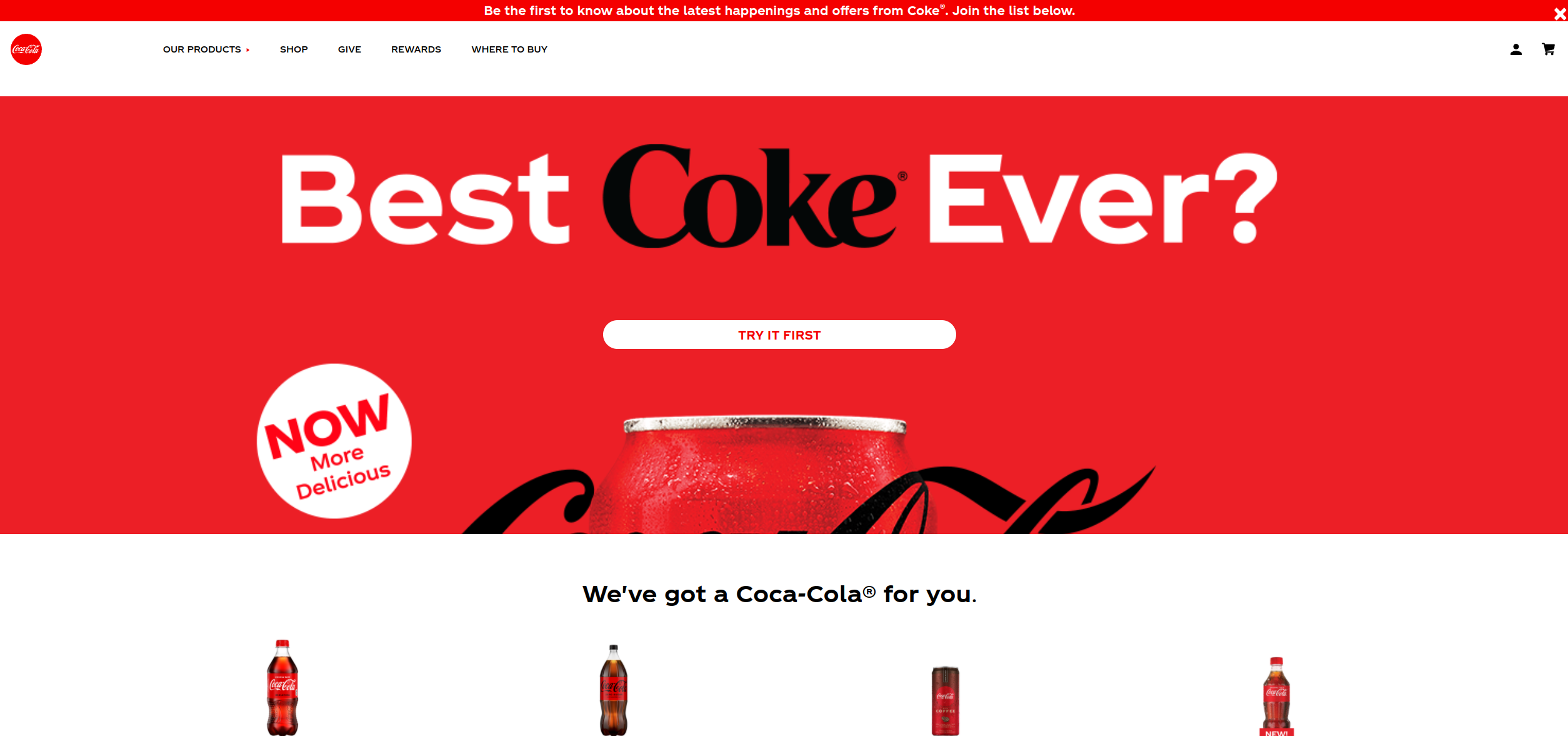
A Hero Image, sometimes called a 'hero header', is a large image with text, often placed at the top of a webpage. A hero image serves as a user's first glimpse of your company and offering because of its prominent placement towards the top of a webpage that usually extends full-width.
 .
.A quick reminder: Hero images, the Core Web Vitals and the Largest Contentful Paint:
Because of the size of the hero image (it usually spans the entire width of the page and a good portion of the height of the visible viewport) this element will become the Largest Contentful Paint element in almost all cases.
The Largest Contentful Paint is an important Core Web Vitals metric. The largest contentful paint element is the largest element that will be painted in the visible viewport of the browser. According to the 2025 Web Almanac, on 76% of mobile pages the LCP element is an image. Only 62% of mobile origins currently pass LCP. Fix the hero image and you fix LCP for most sites.
Because unoptimized images tend to take up much bandwidth and therefore take a long time to load, hero images will often cause bad Largest Contentful Paint metrics.
Optimizing the hero image and the Largest Contentful Paint
There are many techniques for optimizing the hero images and the Largest Contentful Paint. I will explain them here. Most techniques can be combined for even better results!
1. Preload the hero image or send 103 Early Hints
When you want an element to be available as soon as possible in the browser you could preload that element. Preloading involves using resource hints. Resource hints tell the browser something about the priority of an element and will trigger a very early download of that resource. According to the 2025 Web Almanac, only 2.1% of pages preload their LCP image. That is a huge missed opportunity.
<link
  rel="preload"
  as="image"
  href="wolf.jpg"
  fetchpriority="high"
  imagesrcset="hero_400px.jpg 400w, hero.jpg 800w, hero_1600px.jpg 1600w"
  imagesizes="50vw">
103 Early Hints allow servers to send resource hints before the final HTML response. The browser can start preloading the hero image while the server is still generating the page. Chrome, Edge, and Firefox all support preloading via Early Hints. Safari supports preconnect but not yet preload via Early Hints. For details on setting this up, read the complete guide to 103 Early Hints.
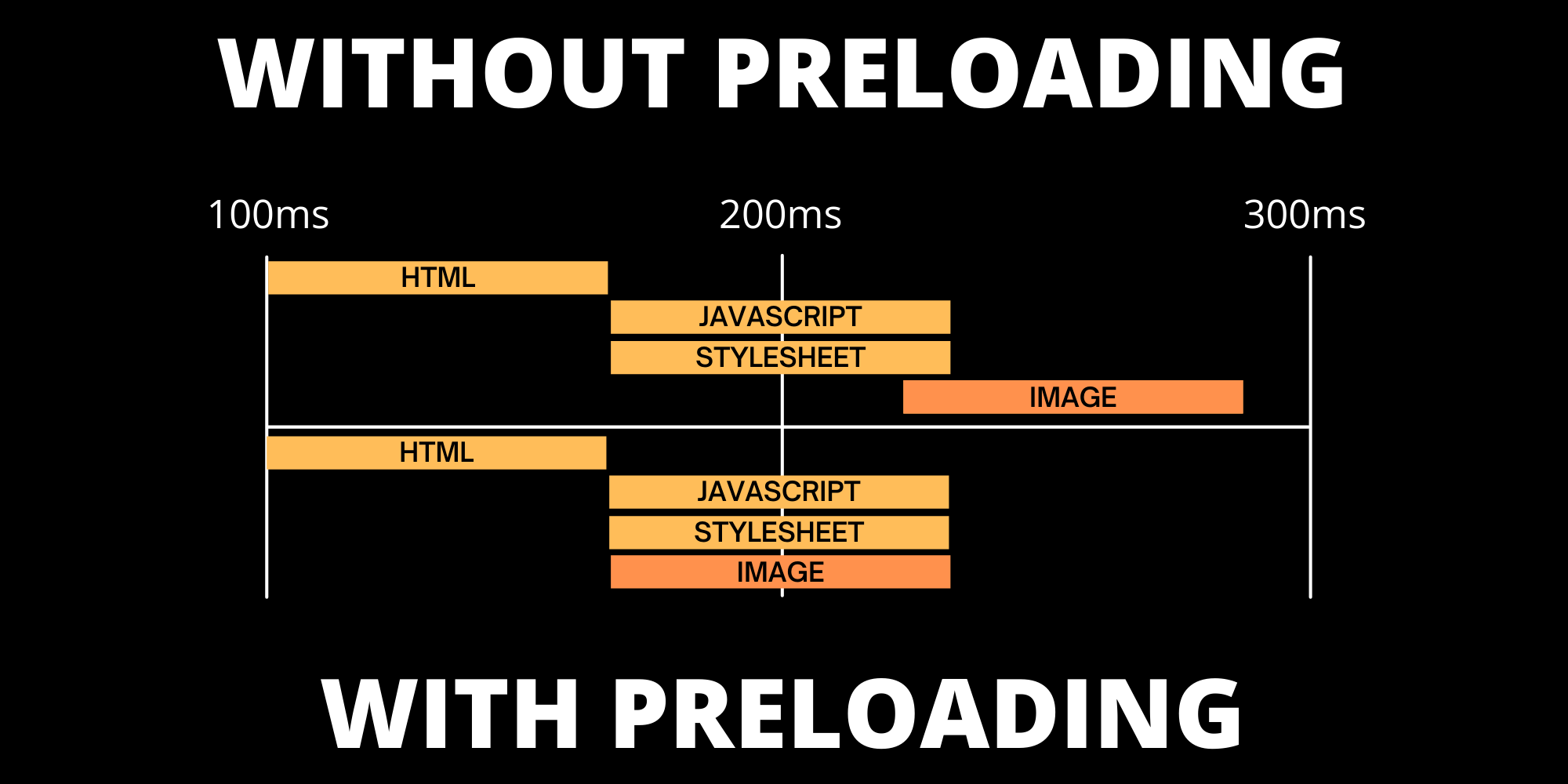
Across sites monitored by CoreDash, pages with a preloaded LCP image have an 81% 'good' LCP rate compared to 64% without preloading. For a complete walkthrough of all preloading options, see how to preload the LCP image.
2. Use fetchpriority="high" on the hero image
The fetchpriority attribute tells the browser which resources matter most. Setting fetchpriority="high" on your hero image boosts its download priority above other images and competing resources like scripts and fonts.
<img src="hero.webp" fetchpriority="high" width="1200" height="600" alt="...">
According to the 2025 Web Almanac, only 17% of pages set fetchpriority="high" on their LCP image. That means 83% of sites are leaving easy performance gains on the table.
You can also add fetchpriority="high" to the preload link shown above. Only use fetchpriority="high" on a single image per page. Multiple high-priority images compete with each other and cancel out the benefit. For more on how browsers prioritize resources, read the Core Web Vitals guide to resource prioritization.
3. Compress the hero image and use next-gen formats
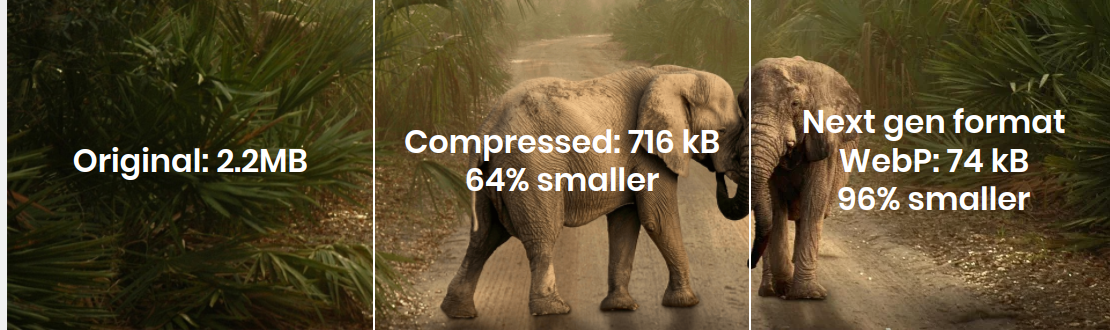
Compressing images will make their file size smaller. Smaller file sizes will take up less bandwidth and are available to the browser as soon as possible. Compressing images can be done in your photo editor, in your CMS (tip: your developer can set the WordPress compression level) or with an online image compression tool.
Most slow hero images are slower than they need to be because they are served in the 'wrong' image container like PNG or JPEG. There are much faster alternatives to JPEG and PNG like WebP and AVIF. According to the 2025 Web Almanac, 57% of LCP images are still served as JPEG and 26% as PNG, while only 11% use WebP and less than 1% use AVIF.
For many CMS systems there are conversion plugins that will convert your images to next-gen formats. When image conversion is difficult to integrate into your website, a CDN with image conversion support might be the solution you are looking for. For a complete overview of image optimization techniques, see optimize images for Core Web Vitals.
4. Do not use background images, use normal responsive images
Your hero image should be a normal image and never a background image. The usual way of doing hero images is by adding a background image to the hero container and setting the background-size of that container to cover. This will ensure the hero image will fit the screen in all cases.
Background images are bad for Core Web Vitals. Remember that! Read more about why background images are bad for performance. If you cannot avoid background images entirely, you can at least defer background images that are below the fold.
- Background images are loaded at a lower priority
- Background images are not responsive (not unless you really want to complicate things)
- Background images might cause Core Web Vitals issues with most lazy loading libraries
The way I do it is by adding a normal image in an absolute position and setting the object-fit property of that image to cover. Once I have changed the background image to a normal image I can start using responsive images. If you are using Elementor, check out how to fix Elementor hero images.
Responsive images means that for different devices (mobile, desktop, tablet) a different version of the same hero image can be sent. For a desktop device I might send a huge 1920x1280 hero image while for a mobile device I would only need to send a smaller 400x266 pixels hero image. That is 25 times less data!
- The hero images are now loaded with a higher priority
- I can now use responsive images for the hero image
style.css
<style>
#herocontainer{
    position:relative;
    padding:4rem 0
}
#heroimg{
    object-fit: cover;
    width: 100%;
    height: 100%;
    position: absolute;
    top: 0;
}
</style>
index.html
<div id="herocontainer">
<h1>Welcome to my site</h1>
<picture>
    <source
        type="image/webp"
        media="(max-width:540px)"
        srcset="herosm.webp">
    </source>
    <img fetchpriority="high" loading="eager" decoding="async" src="hero.webp" id="heroimg">
</picture>
</div>
5. Serve hero images from the main domain and consider a CDN
All too often I see the largest contentful paint image being served from a different domain, for example 'static.mydomain.com'. These subdomains often point to a CDN. While I encourage the use of a CDN (see below) a setup like this is not advisable. The image on the subdomain requires a new connection to a new server. New connections are costly and will take up valuable time. When the image is served from the main domain (www.mydomain.com for example) the images can be fetched much faster through the already established server connection.
When set up on the main domain a CDN might offer a huge speed increase. Especially when your site is visited from all over the world. A CDN has servers strategically placed all over the world where your static resources (like images) are cached for fast local response times. This means data does not have to travel all over the world but can be served from a local edge server. For a complete setup guide, see how to configure Cloudflare for Core Web Vitals.

6. Avoid lazy loading the hero image
Make sure that there is no lazy loading being applied to your hero image. Hero images should always load eager.
Many sites, especially WordPress sites, are using some sort of WordPress pagespeed plugin like WP Rocket or WP Core Web Vitals. These plugins usually do a great job in speeding up slow sites but they cannot fix stupid :-)
These plugins will lazy load images that seem like good candidates to lazy load. If the hero image is not an eager image those plugins will probably also lazy load the hero image.
This, at best, will cause a small delay in the LCP metrics. At worst, especially when JavaScript based lazy loading is activated, it will cause a larger delay. According to the 2025 Web Almanac, roughly 17% of pages lazy-load their LCP image. That is 17% of sites actively making their LCP worse. If Lighthouse is warning you about this, see how to fix the lazily loaded LCP image warning.
Making images load eager is simple. Just add loading="eager" to the image. Note that eager is actually the browser default. Omitting the loading attribute entirely has the same effect. The real goal is making sure the hero image does NOT have loading="lazy". Explicitly adding eager is still useful as a signal of intent, especially on sites where a CMS or plugin may auto-apply lazy loading.
<img src="hero.webp" loading="eager" fetchpriority="high" width="800" height="400">
7. Avoid layout shifts caused by the hero image
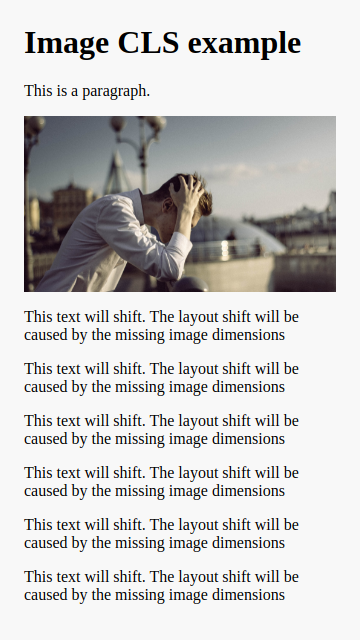
Another common issue I see with hero banners and hero images is that they cause a huge layout shift. These layout shifts may occur for different reasons.
- The hero element is created with JavaScript. Some hero plugins and page builders like Elementor are known to rely on JavaScript to render the hero content. Though there is nothing wrong with JavaScript, make sure the hero element renders the same without JavaScript.
- The fonts in the hero element cause a layout shift. The hero element usually contains some large text with a call to action and a tagline. Make sure these large fonts do not cause a layout shift.
- Missing image dimensions. When the hero image is not a cover image (either as a background image or an absolute positioned image) missing image dimensions (width and height) will certainly cause a large layout shift.
While fixing the layout shift will not improve the Largest Contentful Paint, it will improve the Core Web Vitals of the page. For more information on how to fix the layout shift please read the in-depth guide on how to fix the Cumulative Layout Shift!

8. Use 2-stage loading to improve the hero Core Web Vitals
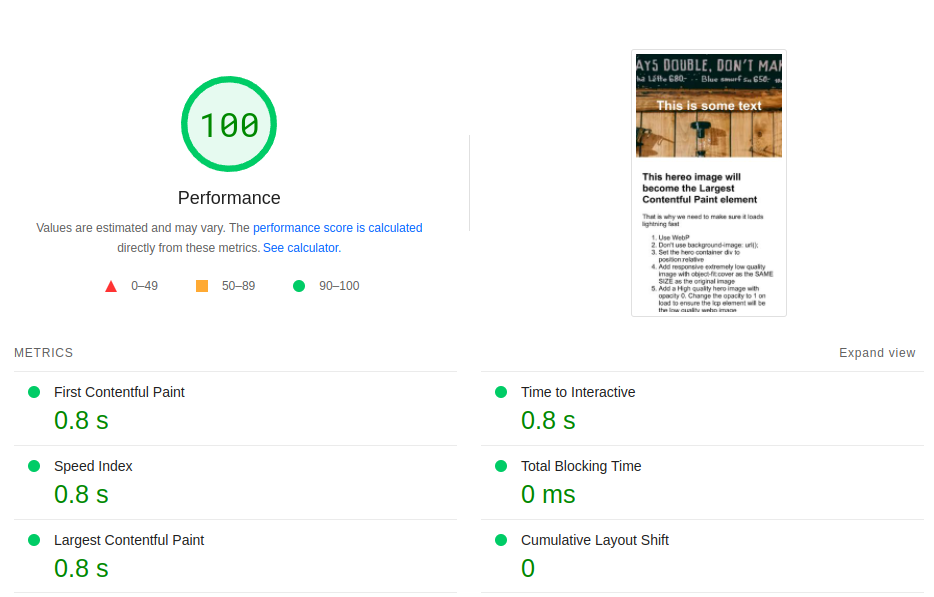
2-stage loading is a fast technique that we apply to all our images. We first serve an extremely low quality image that is expected to download much earlier than the larger high quality image. Once the low quality image has been painted on the screen the browser is triggered to fetch the high quality image in the background. Once the high quality image has been downloaded the low quality image will be replaced by the high quality image.
There are 3 methods of 2-stage loading. The first two are methods you should consider. The last one is one you should not do.
Stage 1: low quality webp 3-5kb 
Stage 2: high quality webp 20-40kb 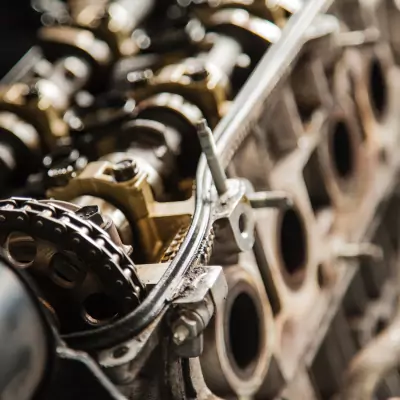
1. Full 2-stage loading
With full 2-stage loading the first low quality image has the exact same dimensions (width and height) as the original high quality image.
The result of this 2-stage loading is that the largest contentful paint element will be the much faster, low quality image (which will then lazily be swapped). The swapping of the image will all happen so fast that a casual visitor will probably never notice. The result of this technique is that the LCP is painted much earlier, the page appears 'ready' much sooner which contributes to a far better user experience and improved Core Web Vitals.
2. Smaller inline placeholders
The smaller placeholder is a pretty cool technique that has one drawback: it does not improve the Core Web Vitals. It is still a great technique because it improves the user experience.
The basic idea is the same as for the 2-stage loading technique but instead of one low quality image with the same dimensions a much smaller image with smaller dimensions is placed inline through a data URI. The final hero image which will be the largest contentful paint image is still downloaded in the background. This trick will not improve the Largest Contentful Paint but will make the page appear ready even faster than the 2-stage loading technique.
3. Transparent placeholders
A common 2-stage loading technique and a method to trick the browser into sending an early Largest Contentful Paint metric is to use transparent SVG elements. Those elements are small and can be placed inline, just like the smaller inline placeholder.
Using an inline SVG element and swapping it is actually a lazy loading technique. The advantage of this technique is that it works cross-browser.
Lazy loading, of course, should only be applied to elements outside of the viewport. In this case the transparent SVG element will only delay the real hero image and has no added value for your visitor. Where the paint metrics might be great, the UX of the page will actually worsen.
That is why the hero image should always be loaded eagerly without tricks that cause a bad UX.
Putting it all together
Here is what an optimized hero image looks like when you combine preloading, fetchpriority, responsive images, and eager loading:
<!-- In the <head> -->
<link rel="preload" as="image" href="hero-800.webp" fetchpriority="high"
  imagesrcset="hero-400.webp 400w, hero-800.webp 800w, hero-1600.webp 1600w"
  imagesizes="100vw">

<!-- In the <body> -->
<img src="hero-800.webp"
  fetchpriority="high"
  loading="eager"
  decoding="async"
  srcset="hero-400.webp 400w, hero-800.webp 800w, hero-1600.webp 1600w"
  sizes="100vw"
  width="1600" height="900"
  alt="Descriptive alt text">
After making changes, verify the improvement with Real User Monitoring. Lighthouse gives you a lab snapshot, but Google ranks based on real user field data collected over the previous 28 days.
Your Lighthouse score is not the full picture.
Your real users are on Android phones over 4G. I analyze what they actually experience.
Analyze field data
