INP Input Delay: Oorzaken, Diagnose en Oplossingen
Leer hoe je INP-problemen veroorzaakt door input delays kunt vinden en verbeteren

Interaction to Next Paint (INP) problemen veroorzaakt door input delay
Deze pagina maakt deel uit van onze Interaction to Next Paint (INP) serie. INP meet de totale tijd vanaf een gebruikersinteractie tot de volgende visuele update. Input delay is de eerste van drie fasen die samen de INP vormen, gevolgd door verwerkingstijd en presentatievertraging. Als je nieuw bent met INP, lees dan eerst onze gids over hoe je INP-problemen kunt identificeren en oplossen.
INP TIP: input delay treedt meestal op tijdens de vroege laadfasen van de webpagina. Dit is het moment waarop de browser het drukst bezig is met het parsen en uitvoeren van scripts.
Table of Contents!
- Interaction to Next Paint (INP) problemen veroorzaakt door input delay
- Wat is input delay?
- Input delay en de INP
- Het belang van input delay
- Oorzaken van input delay
- Input delay minimaliseren
- Taken opsplitsen met scheduler.yield()
- Taken prioriteren met scheduler.postTask()
- Praktische implicaties
- Ontdek de andere INP-fasen
Wat is input delay?
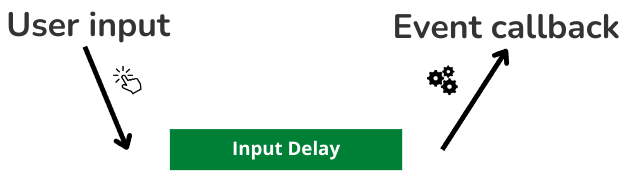
Input delay verwijst naar de tijd die de browser nodig heeft om een event callback te beginnen verwerken nadat een gebruiker interactie heeft met een webpagina (bijvoorbeeld door op een knop te klikken of een toets in te drukken). Hoewel er altijd enige input delay is (zelfs browsers hebben tijd nodig om callbacks in te plannen), treedt overmatige input delay op wanneer de browser druk bezig is met het uitvoeren van andere geplande taken en de callbacks die door de interactie worden aangevraagd niet onmiddellijk kan inplannen.
Tijdens de input delay heeft de gebruiker zijn actie al uitgevoerd (klik, tik of toetsaanslag), maar de browser is nog niet begonnen met het uitvoeren van de bijbehorende event handler. De gebruiker ziet geen enkele reactie. Dit verschilt van verwerkingstijd, waarbij de event handler actief wordt uitgevoerd, en van presentatievertraging, waarbij de browser de visuele update rendert. Input delay is pure wachttijd veroorzaakt door een overbelaste main thread.
Input delay en de INP
De Interaction to Next Paint (INP) kan worden opgesplitst in 3 onderdelen: "Input Delay", "Processing Time" en "Presentation Delay".

Je merkt misschien dat er naamgevingsovereenkomsten zijn tussen de Input Delay en de oudere Core Web Vital "First Input Delay" (FID). De Interaction to Next Paint verving FID als Core Web Vital in maart 2024. De First Input Delay mat alleen de tijd tussen de eerste interactie en de event callback. Hoewel FID is afgeschaft, is input delay nog steeds belangrijk omdat het aan de basis ligt van elke Interaction to Next Paint meting.
Het belang van input delay
Omdat veel ontwikkelaars denken aan het verbeteren van de INP in termen van het optimaliseren van callback-functies (het optimaliseren van de verwerkingstijd), wordt input delay vaak over het hoofd gezien. Toegegeven, input delay is meestal niet het grootste deel van de INP, maar als we de input delay optimaliseren, optimaliseren we vaak alle INP-interacties in één keer. Het verminderen van input delay verbetert elke interactie op de pagina, niet alleen de slechtste.
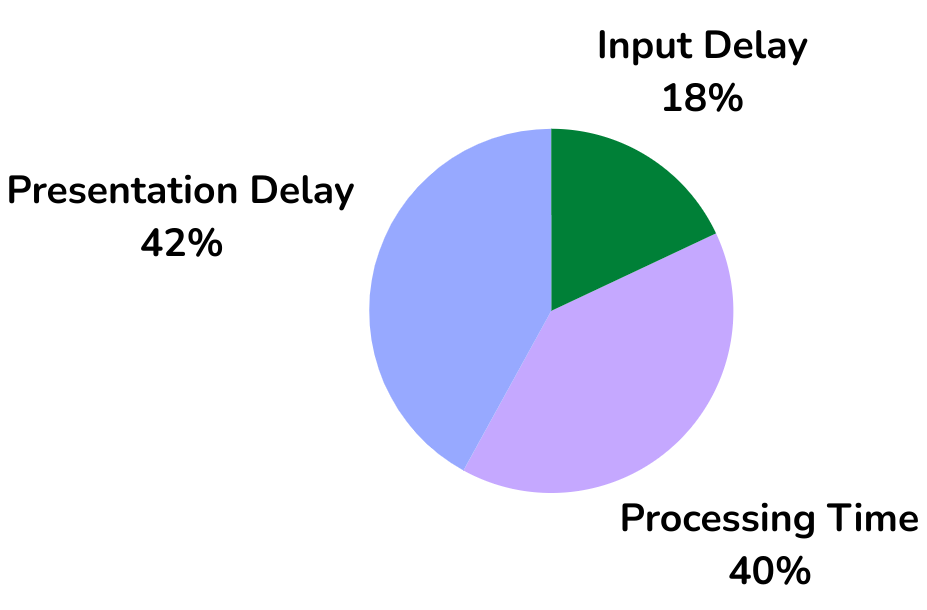
Bij CoreDash verzamelen we miljoenen Core Web Vitals datapunten per uur. Op basis van die gegevens is input delay verantwoordelijk voor ongeveer 18% van de Interaction to Next Paint. Dat is minder dan verwerkingstijd of presentatievertraging, maar input delay is vaak de makkelijkste fase om te verminderen omdat de oorzaak bijna altijd is: "te veel JavaScript dat op het verkeerde moment draait."
Oorzaken van input delay
Input delay treedt op wanneer de main thread bezig is met het uitvoeren van andere taken. Deze taken kunnen afkomstig zijn van:
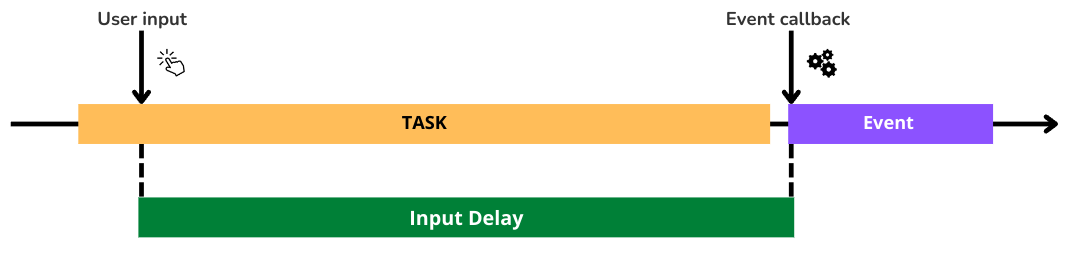
- Vroege taken. Normale, uitgestelde en async scripts die vroeg worden ingepland creëren vroege taken. Dit zijn de meest voorkomende bron van input delay omdat ze worden uitgevoerd tijdens het kritieke opstartvenster wanneer gebruikers het meest waarschijnlijk met de pagina interacteren.
- Geplande taken. Sommige taken worden niet aan het begin van het laden van de pagina uitgevoerd, maar kunnen worden ingepland voor nadat de pagina is geladen. Deze taken kunnen ook interfereren met de INP en een input delay veroorzaken. Bijvoorbeeld scripts die draaien na het
window.onloadevent of scripts die worden vertraagd door zogenaamde optimalisatie-plugins. Lees meer over wanneer je async vs defer moet gebruiken voor JavaScript. - Herhaalde taken. Terugkerende taken via
setInterval()die relatief lang duren om uit te voeren en samenvallen met de INP. - Overlappende callbacks. Overlappende callbacks zijn een veelvoorkomende oorzaak van input delay. Meerdere callbacks die kort na elkaar zijn ingepland kunnen een wachtrij creëren, waardoor de verwerking van de volgende interactie wordt vertraagd. Bijvoorbeeld een
mouseoverhandler die net voor eenclickhandler afgaat, kan de verwerking van de klik vertragen met de duur van de mouseover-taak.
Input delay minimaliseren
- Splits lange vroege taken op in meerdere kleinere taken. Tijdens lange taken kan de browser niet reageren op gebruikersinvoer, terwijl de browser na elke korte taak wel kan reageren op gebruikersinvoer. Splits lange taken op met
scheduler.yield()of door elke functie in een timeout van 0 te wrappen metsetTimeout(callback, 0). - Beheer interactieve elementen. Overweeg om interactieve elementen (zoals een zoekbalk) niet te tonen voordat de JavaScript-code die ze aanstuurt volledig is geladen. Dit voorkomt vroege klikken op elementen die nog niet klaar zijn om klikken te ontvangen. Om de UX voor dit patroon te optimaliseren kun je ofwel het laden van de benodigde JavaScript prioriteren of het element tijdelijk verbergen/uitschakelen totdat het functioneel is.
- Scriptuitvoering tijdens inactieve tijd. Plan niet-kritieke scripts in om te draaien tijdens inactieve perioden van de browser met
requestIdleCallback(). Deze functie draait wanneer de browser inactief is en geen gebruikersinvoer hoeft te verwerken. - Gebruik web workers om JavaScript buiten de main thread van de browser uit te voeren. Web workers maken het mogelijk om scripts buiten de main thread uit te voeren. Dit voorkomt dat de main thread blokkeert en INP input delay problemen veroorzaakt.
- Controleer op wachtende invoer tijdens herhaalde taken. Controleer voordat je een reeks geplande taken uitvoert of er wachtende invoer is voordat je de taken start. Als er invoer in de wacht staat, geef dan eerst de controle terug aan de main thread.
- Verwijder onnodige code. Controleer regelmatig je scripts en verwijder onnodige code of zelfs hele scripts, omdat elke regel code mogelijk een input delay kan veroorzaken die de Interaction to Next Paint beïnvloedt. Bekijk onze gids over 14 methoden om JavaScript uit te stellen voor praktische technieken.
Taken opsplitsen met scheduler.yield()
De scheduler.yield() API is de aanbevolen manier om lange taken op te splitsen. In tegenstelling tot setTimeout(callback, 0), dat de voortzetting achteraan in de taakwachtrij plaatst, behoudt scheduler.yield() de prioriteit van de taak. Dit betekent dat de browser je code zo snel mogelijk hervat na het afhandelen van eventuele wachtende gebruikersinvoer. Hier is een herbruikbare hulpfunctie:
async function yieldToMain() {
  if ('scheduler' in window && 'yield' in window.scheduler) {
    return await window.scheduler.yield();
  }
  // Fallback for browsers without scheduler.yield()
  return new Promise((resolve) => {
    setTimeout(resolve, 0);
  });
}

// Example: break up a long initialization sequence
async function initializeApp() {
  loadCriticalFeatures();
  await yieldToMain();  // Let the browser handle any pending input

  loadSecondaryFeatures();
  await yieldToMain();

  loadAnalytics();
  await yieldToMain();

  loadNonEssentialWidgets();
}
Lees meer over hoe scheduler.yield() onder de motorkap werkt op de Chrome Developers blog.
Taken prioriteren met scheduler.postTask()
Terwijl scheduler.yield() taken opsplitst, geeft scheduler.postTask() je fijnmazige controle over taakprioriteit. De API accepteert drie prioriteitsniveaus: "user-blocking" voor kritieke taken die de hoogste prioriteit vereisen, "user-visible" voor taken met gemiddelde prioriteit, en "background" voor taken met de laagste prioriteit die tijdens inactieve tijd moeten draaien.
Met postTask() kun je ervoor zorgen dat niet-essentieel werk gebruikersinteracties niet blokkeert. Hier is een praktisch voorbeeld dat analytics-werk op achtergrondprioriteit inplant terwijl UI-updates de hoogste prioriteit behouden:
// High priority: UI feedback runs first
scheduler.postTask(() => {
  showLoadingSpinner();
}, { priority: 'user-blocking' });

// Medium priority: fetch data
scheduler.postTask(async () => {
  const data = await fetchSearchResults(query);
  renderResults(data);
}, { priority: 'user-visible' });

// Low priority: analytics can wait
scheduler.postTask(() => {
  trackSearchEvent(query);
  sendToAnalytics('search', { query });
}, { priority: 'background' });
Bekijk de browsersupporttabel voor scheduler.postTask() voordat je het in productie gebruikt. Voor browsers die de API niet ondersteunen, gebruik requestIdleCallback() als fallback voor achtergrondtaken en queueMicrotask() voor taken met hoge prioriteit.
Praktische implicaties
Wat betekent dit voor jouw site? Hier zijn specifieke aanbevelingen voor WordPress en React/Next.js.
WordPress
WordPress komt, door zijn plugin-gedreven architectuur, vaak met een thema en een groot aantal plugins. Zowel de plugins als de thema's zijn vaak afhankelijk van JavaScript voor functionaliteit. Omdat deze plugins en thema's worden onderhouden door externe ontwikkelaars, heb je geen controle over de inhoud. Dit betekent dat je de bestanden niet kunt wijzigen en "slechte code" niet kunt optimaliseren. Zelfs als de scripts zich vandaag netjes gedragen, is er geen garantie dat ze dat na de volgende update ook doen.
Om input delay te minimaliseren en de Interaction to Next Paint (INP) op WordPress te optimaliseren, neem de volgende stappen:
- Vermijd het gebruik van plugins waar mogelijk. Hoewel plugins een makkelijke manier zijn om functionaliteit toe te voegen, voegen ze vaak scripts toe aan de pagina. Die scripts veroorzaken een input delay die de INP beïnvloedt. Vraag jezelf bij elke plugin af: kan ik dezelfde functionaliteit bereiken met aangepaste code of een server-side oplossing?
- Kies lichtgewicht thema's. Veel WordPress-thema's "bieden alles." Hoewel dat een goed idee lijkt, betekent het dat ze waarschijnlijk vol zitten met functionaliteit die niet wordt gebruikt maar wel waardevolle CPU-tijd in beslag neemt.
- Vermijd page builders. Page builders zoals Elementor of WPBakery geven je een gebruiksvriendelijke, visuele interface voor het bouwen van layouts. Helaas zijn ze vaak afhankelijk van zware scripts om die layout aan bezoekers te presenteren.
- Laad scripts alleen wanneer ze nodig zijn. WordPress heeft de neiging om alle scripts op alle pagina's te laden. Om dit op te lossen, maak een child theme en deregistreer onnodige scripts per paginatype:
function my_deregister_scripts() {
  if ( ! is_page( 'contact' ) ) {
    // Deregister contact form script on non-contact pages
    wp_dequeue_script( 'contact-form-script' );
  }
}
add_action( 'wp_enqueue_scripts', 'my_deregister_scripts' );
- Controleer je Tag Manager. Google Tag Manager containers verzamelen vaak tags in de loop van de tijd. Elke tag die afgaat tijdens het laden van de pagina voegt een taak toe aan de main thread. Verwijder ongebruikte tags, stel geschikte triggers in (laat marketingtags bijvoorbeeld alleen afgaan op conversiepagina's) en gebruik de ingebouwde timingrapporten van Tag Manager om trage tags te identificeren.
- Stel niet-essentiële scripts van derden uit. Chat-widgets, feedbacktools en social media embeds hoeven niet direct te laden. Gebruik
requestIdleCallback()of een scroll-gebaseerde trigger om ze alleen te laden wanneer de gebruiker ze waarschijnlijk nodig heeft. Lees voor gedetailleerde strategieën onze gids over 14 methoden om JavaScript uit te stellen.
React / Next.js
React en Next.js sites worden voornamelijk aangedreven door JavaScript. Het uitvoeren van opstartscripts, het hydrateren van componenten en het verwerken van de virtuele DOM kosten allemaal tijd en kunnen input delay veroorzaken voor de Interaction to Next Paint (INP). Het goede nieuws is dat zowel React als Next.js tools bieden om dit effectief te beheren.
- Gebruik server components (React Server Components in Next.js App Router). Server components worden op de server gerenderd en sturen nul JavaScript naar de client, wat direct de hoeveelheid code vermindert die concurreert om main thread-tijd.
- Laad scripts van derden met de juiste strategie. Gebruik in Next.js het
next/scriptcomponent metstrategy="afterInteractive"voor scripts die nodig zijn na hydratatie, ofstrategy="lazyOnload"voor scripts die kunnen laden tijdens inactieve tijd van de browser. Bekijk onze async vs defer JavaScript gids voor de onderliggende principes. - Implementeer een idle-until-urgent patroon. Dit patroon geeft prioriteit aan gebruikersinteracties boven achtergrondtaken door
requestIdleCallback()te gebruiken voor niet-kritieke initialisatie, terwijl een synchrone fallback behouden blijft die activeert wanneer het component daadwerkelijk nodig is. - Lazy load componenten. Lazy load componenten die niet direct nodig zijn met
React.lazy()of Next.jsdynamic()met{ ssr: false }voor client-only componenten. - Gebruik Suspense voor interactieve componenten. Omwikkel interactieve componenten met
<Suspense>boundaries zodat de rest van de pagina kan renderen en interactief kan worden terwijl zware componenten op de achtergrond laden. Dit voorkomt dat één traag component de invoerverwerking over de hele pagina blokkeert. - Gebruik React transitions voor niet-urgente updates. Omwikkel niet-kritieke state updates met
startTransition()zodat React ze kan onderbreken als de gebruiker een nieuwe interactie uitvoert. Dit houdt de UI responsief, zelfs wanneer grote re-renders aan de gang zijn.
Ontdek de andere INP-fasen
Om je INP onder controle te krijgen, pak ook de andere twee fasen aan:
- Processing Time: Optimaliseer de event handler code die tijdens de interactie draait. Op de meeste pagina's levert hier het grootste deel van je optimalisatie-inspanning resultaat op.
- Presentation Delay: Verminder het render- en schilderwerk dat volgt op de eventverwerking. Op complexe pagina's met grote DOMs is dit vaak de langste fase.
Voor een compleet diagnostisch werkproces, bekijk onze gids over hoe je INP-problemen kunt vinden en oplossen, en keer terug naar de INP-hubpagina voor het volledige overzicht.
CoreDash heeft MCP ingebouwd.
Hang 'm aan Claude of een andere AI agent. Vraag waarom je INP vorige dinsdag piekte.
Zo werkt het
